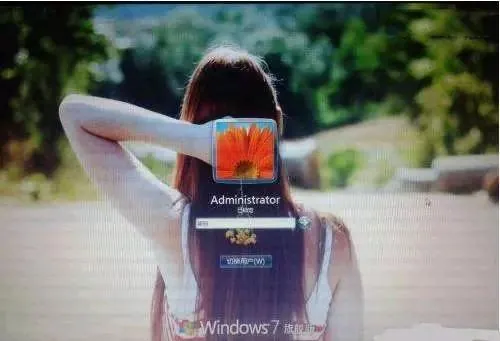
Win7 one-click login background change script
Required
Registry script
Lanzoue Cloud Access password: i0f5 A one-click package is provided below
Source code
Disable custom login background
1
2
3
| Windows Registry Editor Version 5.00
[HKEY_LOCAL_MACHINE\SOFTWARE\Microsoft\Windows\CurrentVersion\Authentication\LogonUI\Background]
"OEMBackground"=dword:00000000
|
Enable custom login background
1
2
3
| Windows Registry Editor Version 5.00
[HKEY_LOCAL_MACHINE\SOFTWARE\Microsoft\Windows\CurrentVersion\Authentication\LogonUI\Background]
"OEMBackground"=dword:00000001
|
If a new theme is selected, the registry value just set will be reset to 0. Because selecting a new theme will reload the configuration file of this theme. And because the registry key value in the configuration file may be 0, you can only run the .reg script again after selecting a new theme.
Replace the login wallpaper file
Bat script to change the login wallpaper source code
 1
 2
 3
 4
 5
 6
 7
 8
 9
10
11
12
13
14
15
16
17
18
| @echo off
set "source=%~dp0backgroundDefault.webp"
set "destination=C:\Windows\System32\oobe\info\backgrounds"
if not exist "%source%" (
echo "Error: %source% does not exist."
pause
exit /b
)
if not exist "%destination%" (
mkdir "%destination%"
)
xcopy /y /exclude:%~nx0 "%source%" "%destination%"
echo "平胖Kiki BLOG.XPDBK.COM!"
pause
|
Bat script to change back to the default wallpaper
 1
 2
 3
 4
 5
 6
 7
 8
 9
10
| @echo off
set folder="C:\Windows\System32\oobe\info"
if exist %folder% (
echo Deleting %folder%...
rmdir /s /q %folder%
echo Folder deleted.
) else (
echo %folder% does not exist.
)
pause
|
One-click image package (image suffix change and not very good image compressor)
Image compression
 1
 2
 3
 4
 5
 6
 7
 8
 9
10
11
12
13
14
15
16
17
18
19
20
21
22
23
24
25
26
| import os
from PIL import Image
def compress_image(input_path, output_path, max_size):
with Image.open(input_path) as img:
# Get the original image size
width, height = img.size
# Calculate the compression ratio
ratio = (max_size * 1024) / os.path.getsize(input_path)
# Calculate the compressed size
compressed_width = int(width * ratio)
compressed_height = int(height * ratio)
# Compress the image and save it
img.thumbnail((compressed_width, compressed_height))
img.save(output_path)
# Define the target directory and maximum file size
target_dir = "pop"
max_file_size = 250 # Unit is KB
for root, dirs, files in os.walk(target_dir):
for filename in files:
if filename.endswith(".webp") or filename.endswith(".webp") or filename.endswith(".webp"):
input_path = os.path.join(root, filename)
output_path = os.path.join(root, "compressed_" + filename)
compress_image(input_path, output_path, max_file_size)
|
Image suffix conversion
 1
 2
 3
 4
 5
 6
 7
 8
 9
10
| import os
from PIL import Image
directory = "./pop"
for filename in os.listdir(directory):
if filename.endswith(".webp") or filename.endswith(".webp") or filename.endswith(".bmp"):
img_path = os.path.join(directory, filename)
with Image.open(img_path) as im:
im.convert('RGB').save(os.path.splitext(img_path)[0] + ".webp")
|
Note:
Create a picture named backgroundDefault. The background picture must be in JPG format and saved to the folder where the script is located. But the file size must be controlled within 250KB, otherwise the modified background picture of the login interface will not be displayed normally!
After doing this, the system should take effect immediately (no need to restart), you can lock the current user or log out to test it. You can lock it with the logo key plus the L key (WinKey+L).
If you want to restore the original login background, just run One-click to change back to the default wallpaper.bat. When the custom picture cannot be found, Win7 will automatically use the default login background.
Download one-click package
Lanzoue Cloud Access password: b6uq
Compression password: TuPiangg114514
Integrity SHA-1 check code: fa60a42cb4754fecfc2a5a0760796229dc34512e
English version available