How to Start and Download Minecraft with PCL2
PCL2 is a very popular Minecraft launcher, but it is not compatible with Linux and macOS because it uses the .NET runtime environment.
Step 1: Download the Launcher from the Web Disk
Official Afdian link and web disk addresses:
Download: LanzouCloud (Extraction code: pcl2)
JAVA download link: Azul Zulu
Step 2: Extract the Files
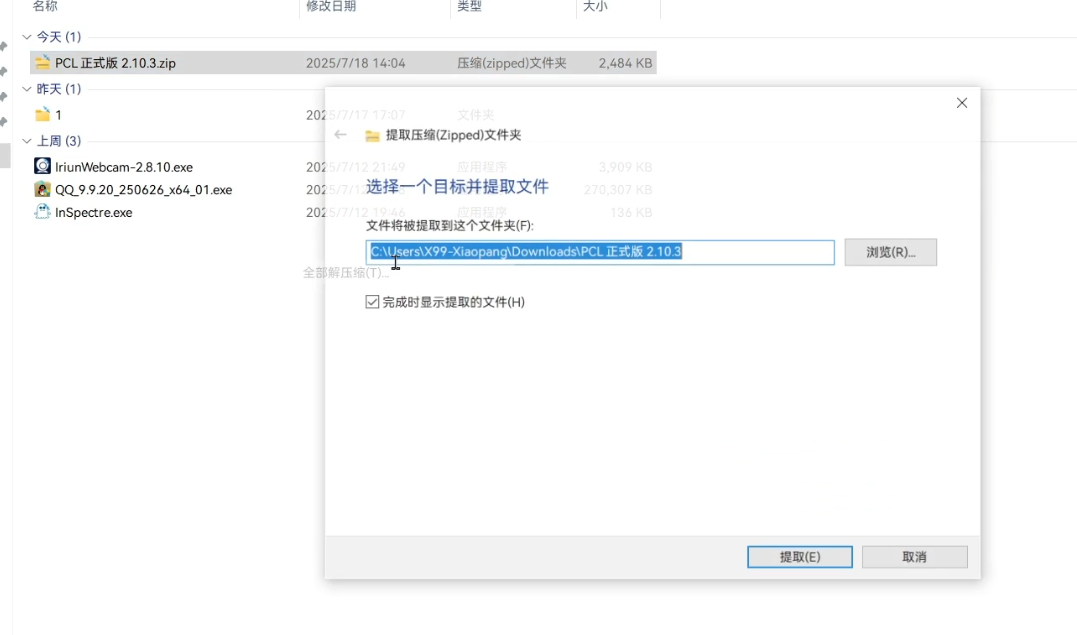
Right-click the downloaded file and use the built-in Windows extraction tool to select “Extract All”.
Step 3: Run PCL2
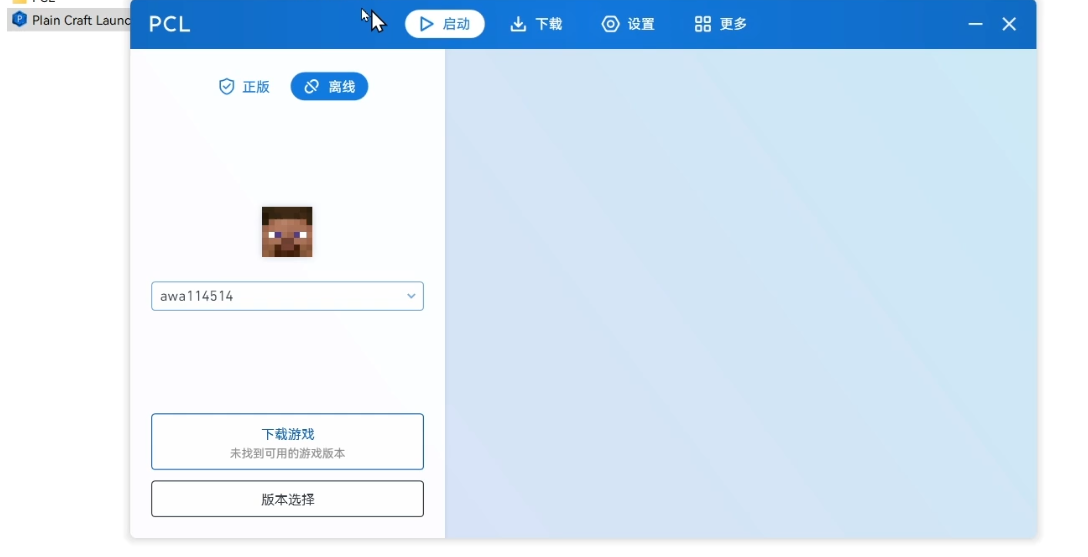
Double-click the PCL2.exe file in the extracted folder to run the launcher.
Step 4: Log in to your Minecraft Account
This is already very simple. Enter your Minecraft account and password, then click login.
Step 5: Download Minecraft Version
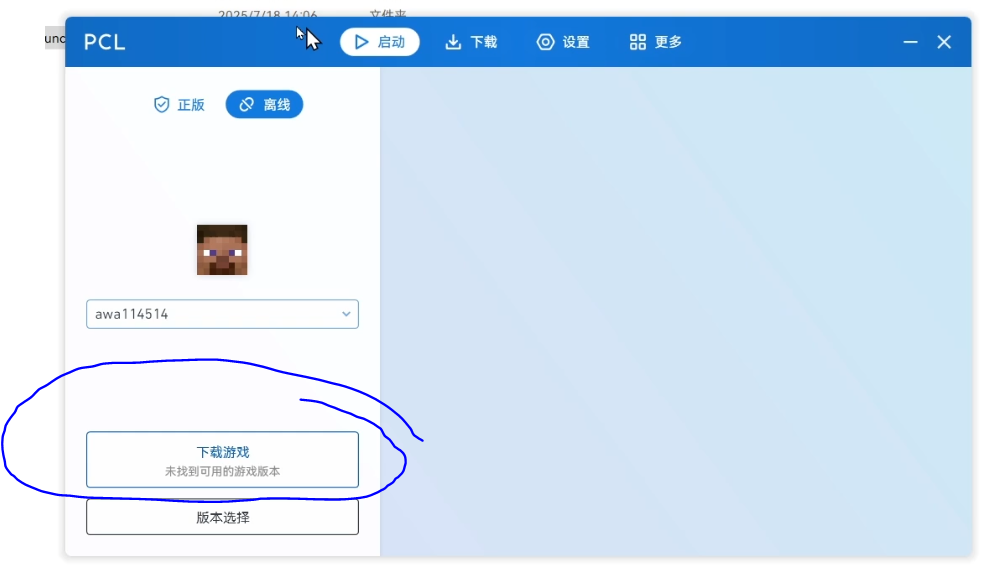
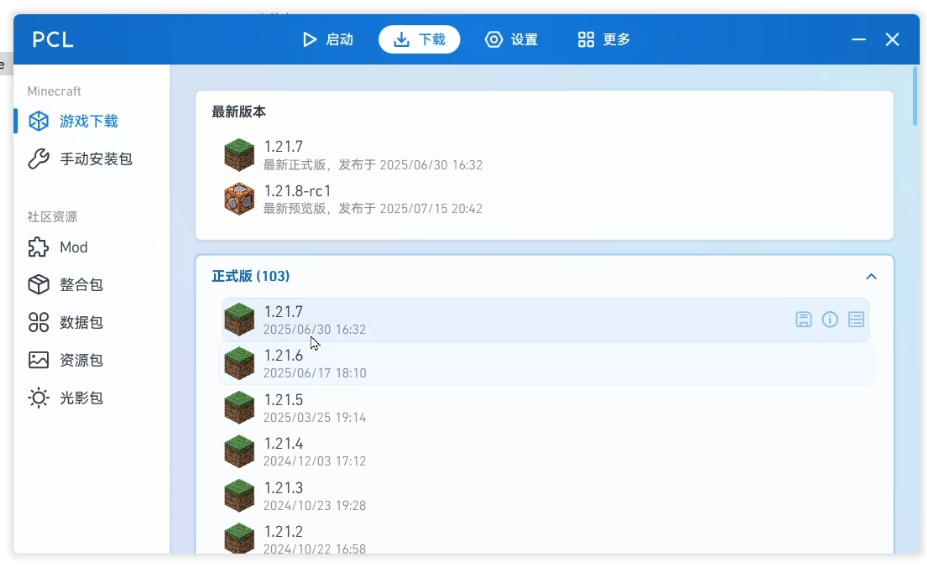
Click on “Versions” in the bottom left corner of the launcher, then click “Download”.
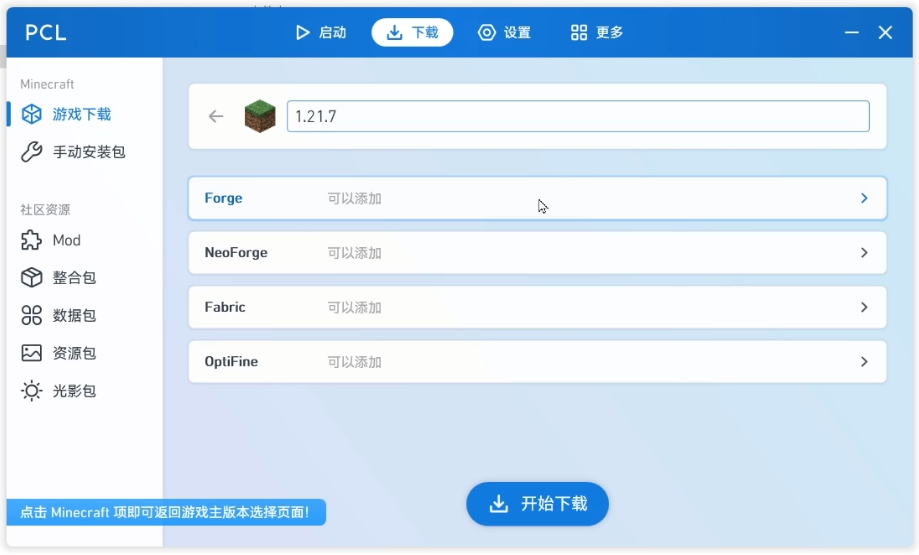
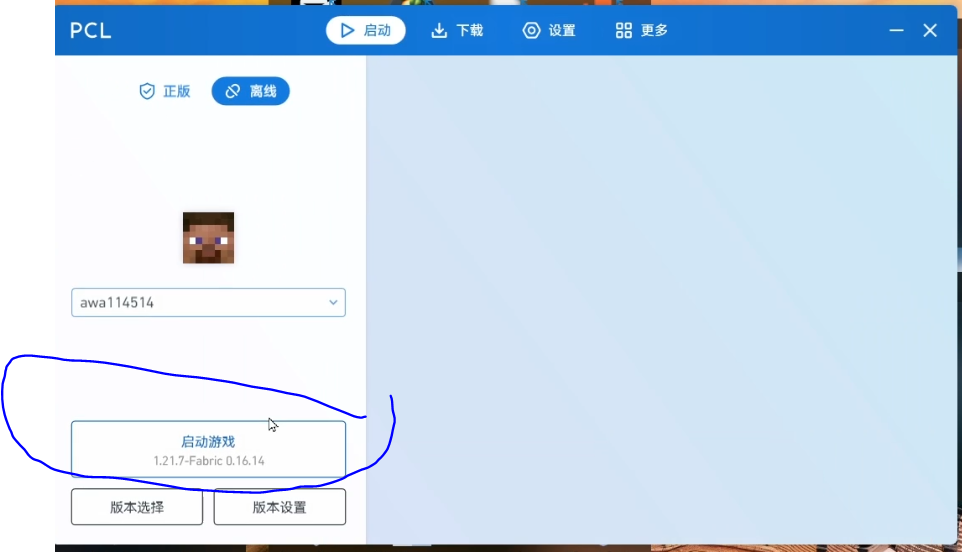
Step 6: Start Minecraft
Click “Start Game” on the main interface.
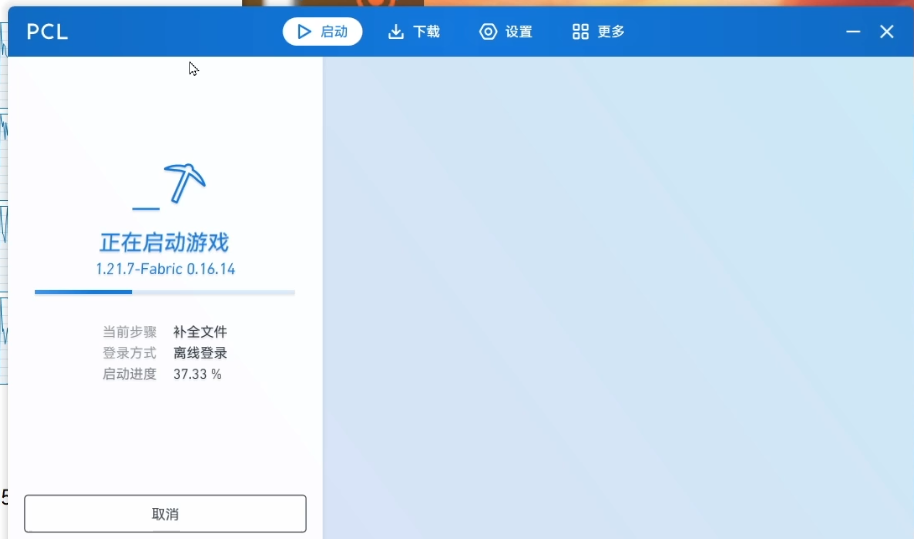
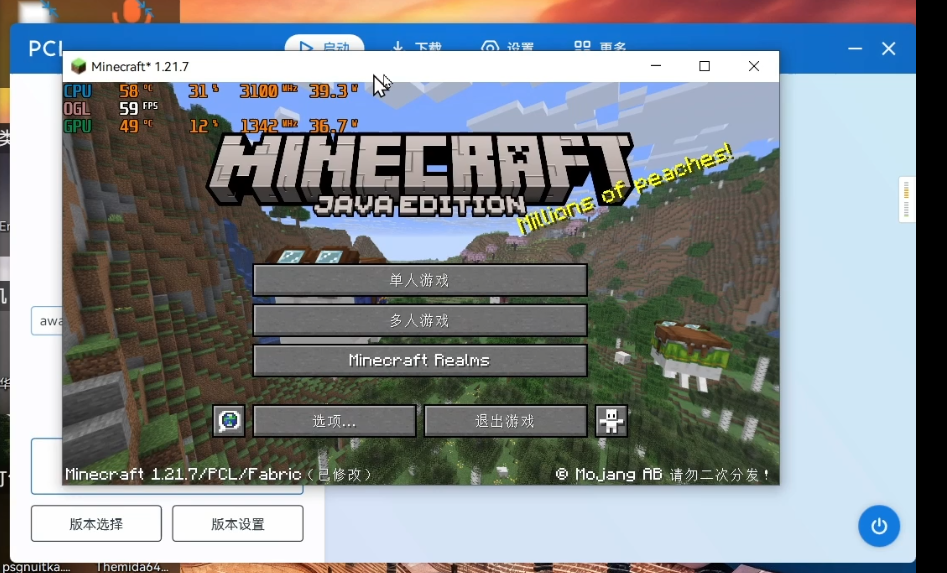
Conclusion
Startup complete.
Other Information
The CPU affects the startup speed of MC. If your CPU is low-end, please be patient.
Try not to resize the game window if you are using integrated graphics, as it may easily crash.
Please do not modify the configuration files randomly. Always make a backup copy before making changes, or it will be very troublesome later.
If you have any questions, please leave a message in the comments section, and I will reply as soon as possible.
Be sure to download JAVA before starting, otherwise it will not launch.
Using JRE is not as stable as using JDK, as versions after 1.16.5 require JDK for stable startup.