How to start and shut down a computer (beginner version)
B station video tutorial direct to How to start and shut down a computer (beginner version)
Welcome to this computer getting started tutorial. If you are new to computers and are a little confused about how to turn them on and off, don’t worry, that’s completely normal. This article will teach you how to properly start and shut down your computer step by step in the simplest and most straightforward way.
Part 1: How to Start a Computer (Turn on)
Starting up a computer is the first step in using it. Whether it is a desktop or a laptop, the operation is similar.
1. Find the power button
First, you need to find the power button of your computer. This button is the “key” to start the computer.
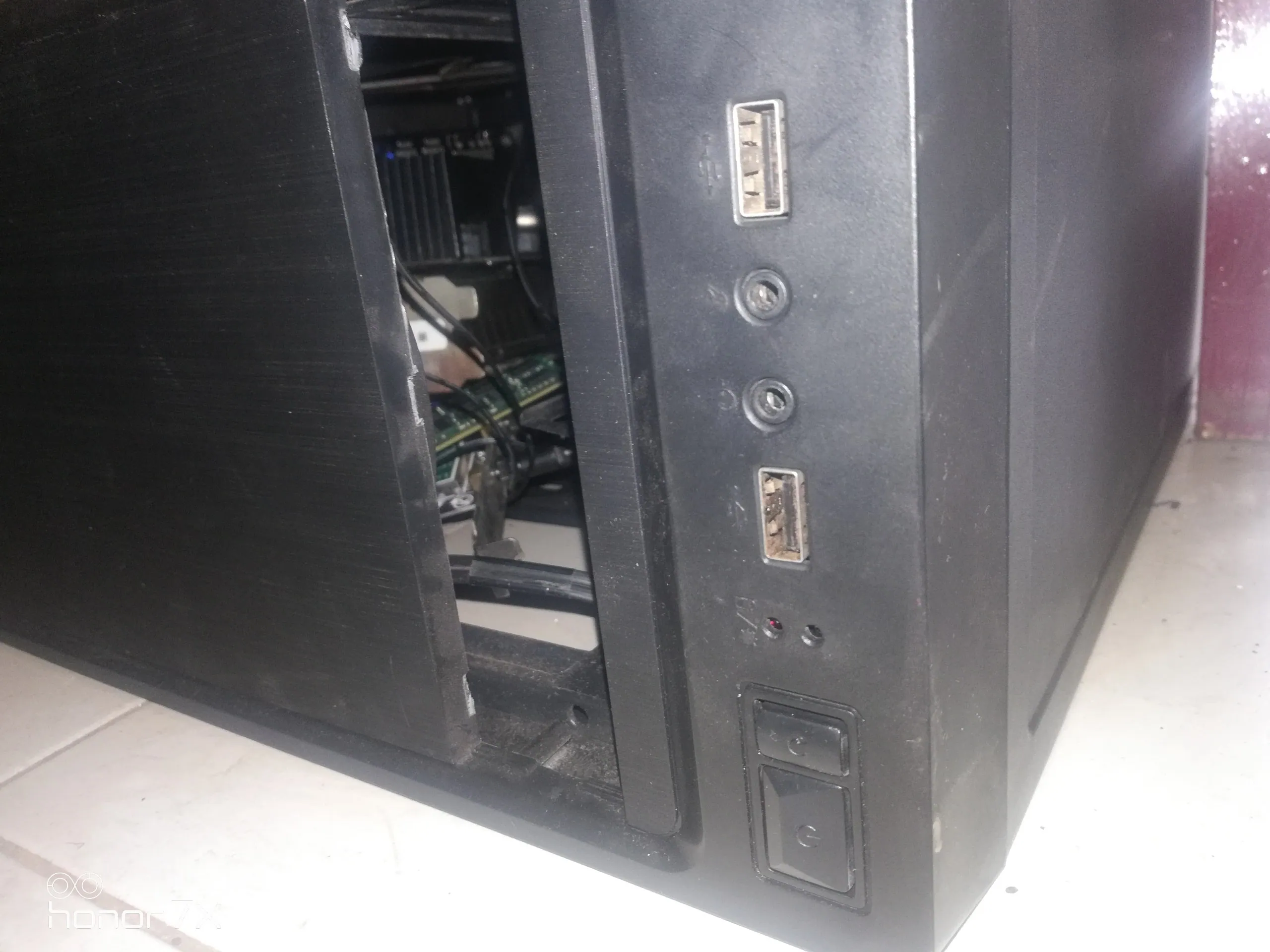
- For desktop computers (main chassis): The power button is usually located on the front or top of the main chassis. It may be a relatively large round or square button, and often has an internationally recognized power symbol (an incompletely closed circle with a vertical line in the middle).
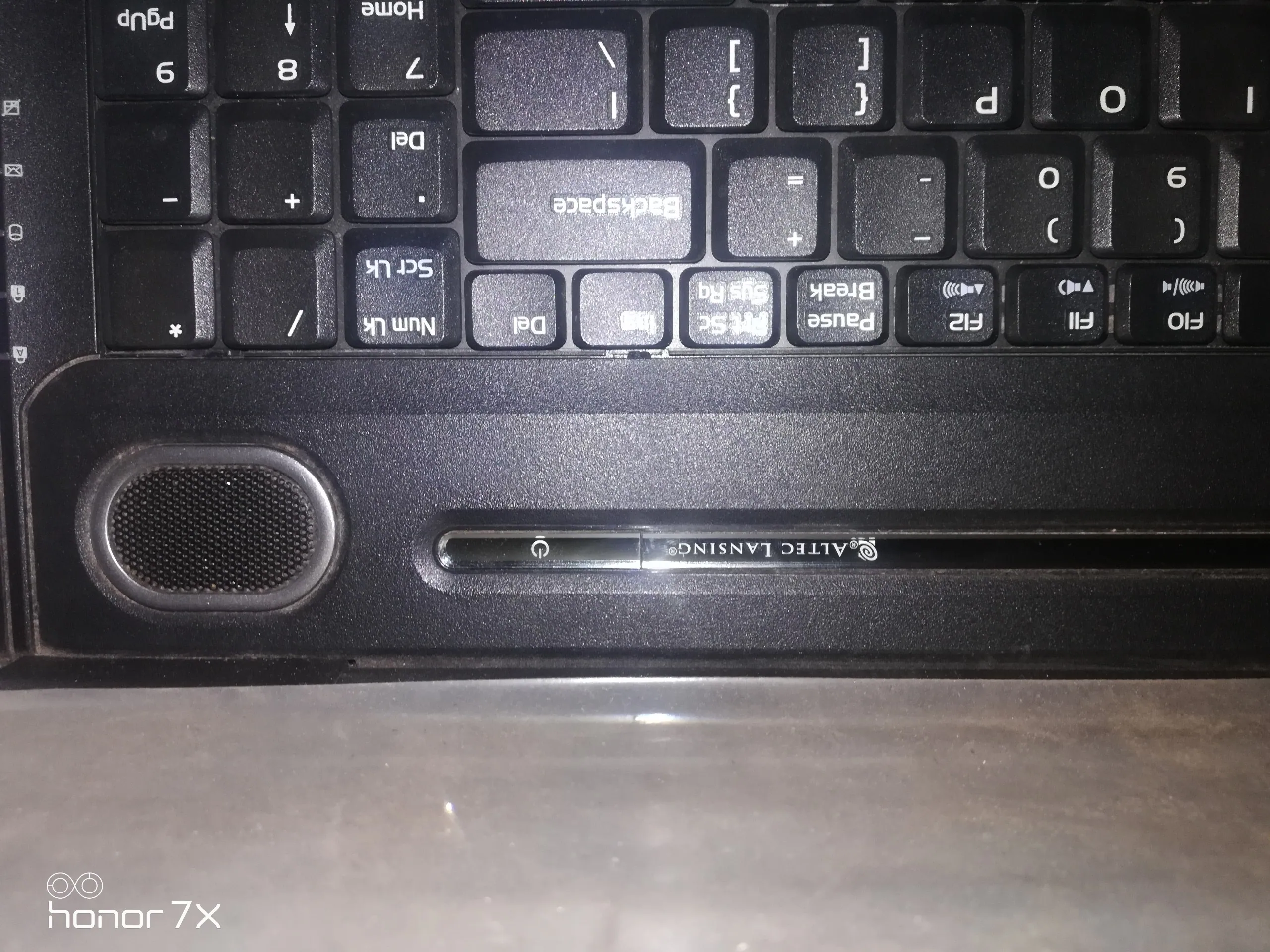
- For laptops: The power button is usually located in the upper area of the keyboard, and sometimes it may be on the side of the keyboard. It is similar in style to a desktop computer and also has a power symbol.

2. Press the power button
Once you find the power button, press it gently and then release it. You don’t need to press it for a long time.
3. Wait patiently
After pressing the button, you may hear the fan spinning and the screen will light up and display the brand logo (such as Dell, HP, Lenovo, Apple, etc.). This means that the computer is “waking up” and self-checking, a process we call “starting up” or “powering on”.

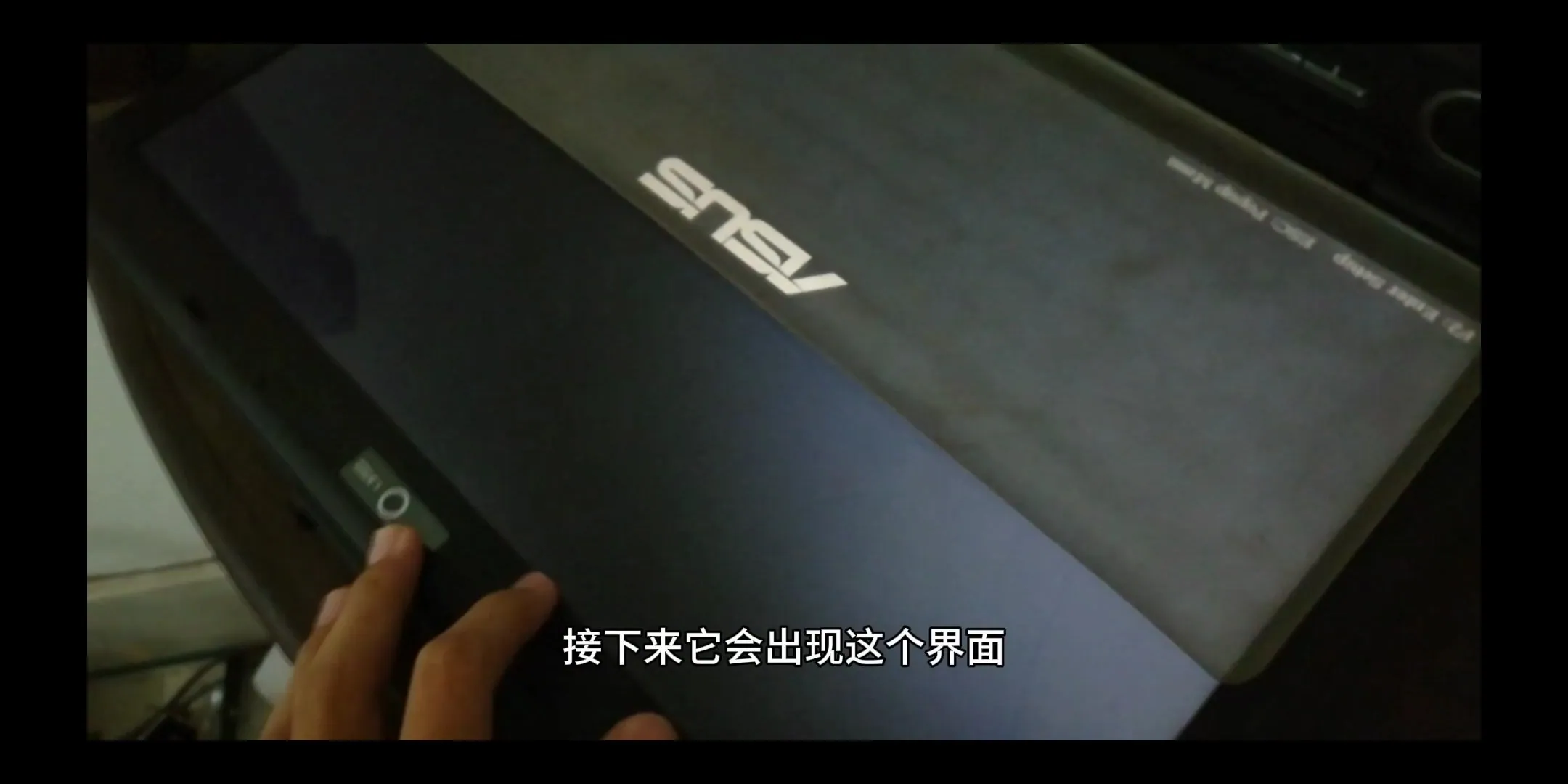
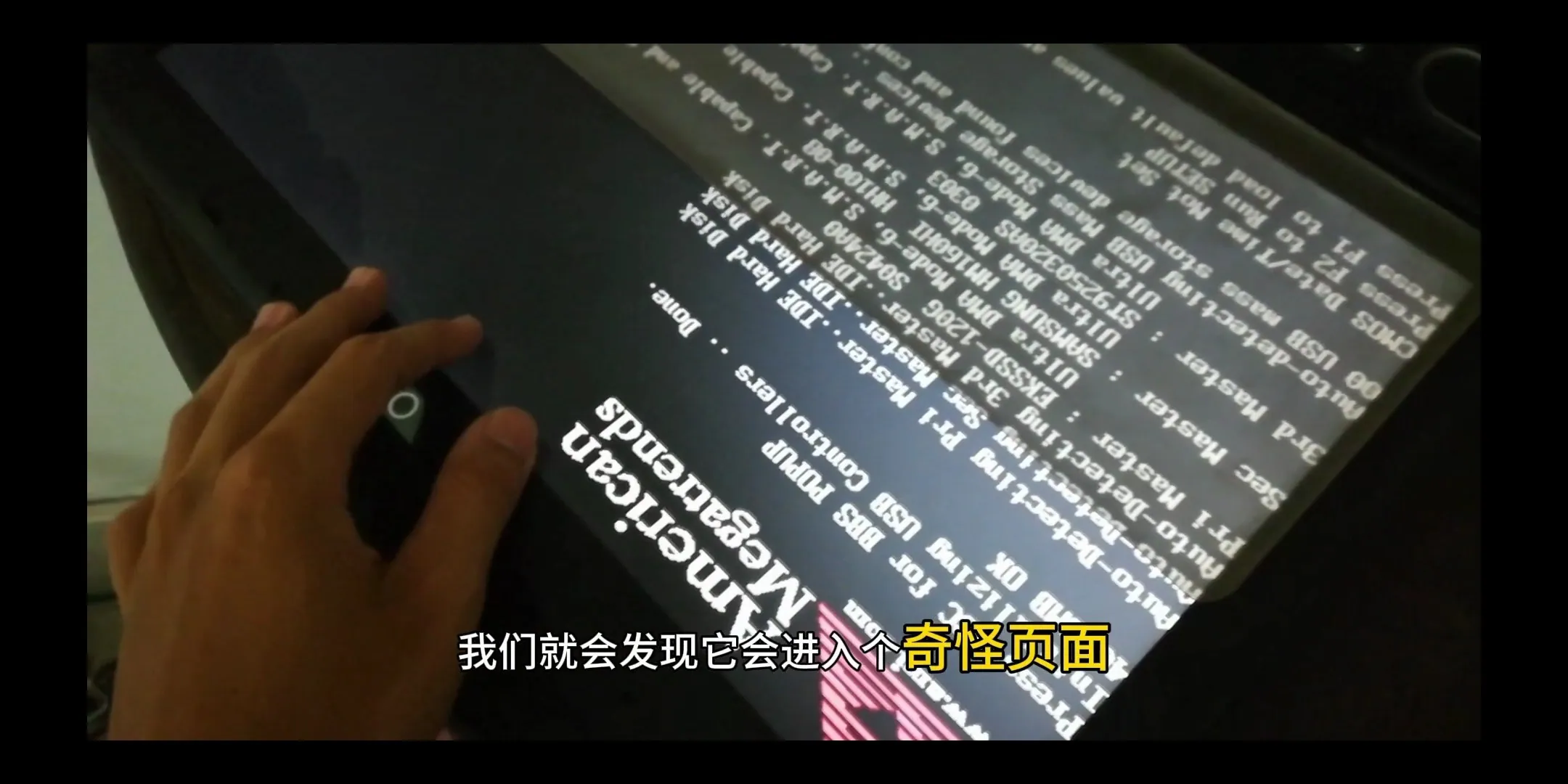
If your computer is stuck on a page with a lot of words, you must try the shortcut keys output in the last line above. For example, mine was left unpowered for a long time, causing the CMOS time to run out and asking me to set it. Press F1 to enter the system
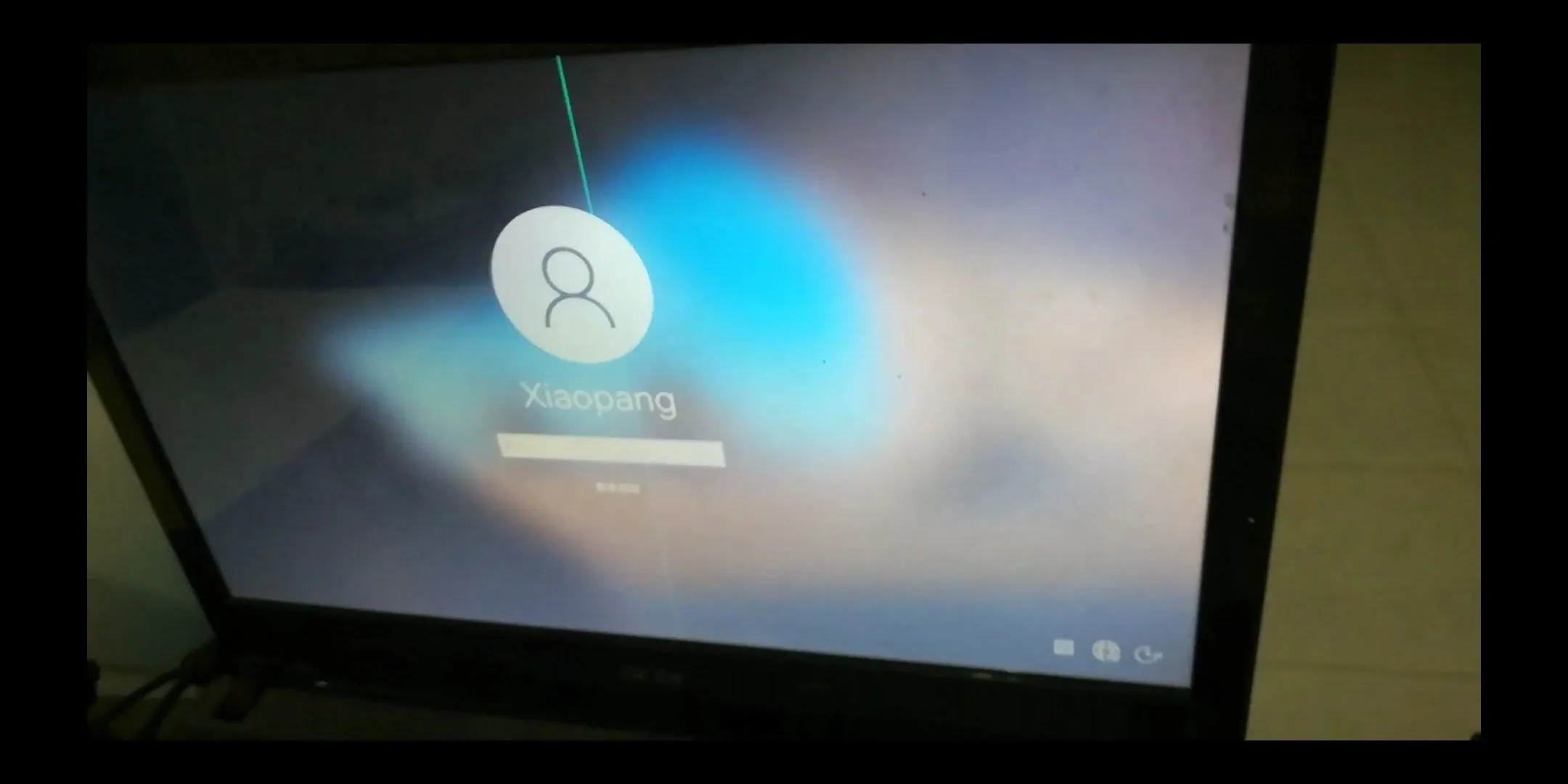
The whole process may take tens of seconds to one or two minutes. Please wait patiently until you see the login interface or desktop of the operating system.
Part 2: How to turn off the computer (shutdown)
Properly shutting down the computer is as important as turning it on. Pressing the power button directly to shut down is an emergency operation that is not recommended and may cause file corruption or system errors.
We should shut down through the normal process provided by the operating system.
1. Use the mouse to find the “Start” or Apple menu
- For Windows system:
- Move the mouse to the lower left corner of the screen and click the “Start” button (usually a Windows logo).
- In the pop-up menu, find and click the “Power” icon.
- In the new options, select “Shut down”.
- For macOS system (Apple computer):
- Move the mouse to the upper left corner of the screen and click the Apple logo ().
- In the pop-up drop-down menu, select “Shut down…”.
- The system will pop up a confirmation window, just click “Shut down” again.
2. Wait for the computer to shut down completely
After clicking “Shut down”, the operating system will start to close all running programs and save related settings. This process also takes a little time.
When the computer screen goes completely black, the indicator light on the mainframe goes out, and the fan stops, it means that the computer has been successfully shut down.
Important Tips: The difference between shutdown, restart, and sleep
In the power options, you may also see “Restart” and “Sleep”.

Shut Down: Completely cut off the power to the computer.
Restart: The computer will automatically shut down and then immediately turn on automatically. This is usually required after installing software or system updates.
Sleep: Put the computer into a low-power standby state. You can quickly wake it up and return to the previous working state, but it still consumes a small amount of power.
Summary
Congratulations! Now you have mastered the most basic operation of the computer - turning it on and off. Remember, turning it on only requires a light press of the power button, while shutting it down is recommended to operate through the system menu. Practice a few more times and you will find that it is actually very simple. Happy computer use!