
Materials Needed
- Chrome Browser
Steps
Enabling DOH
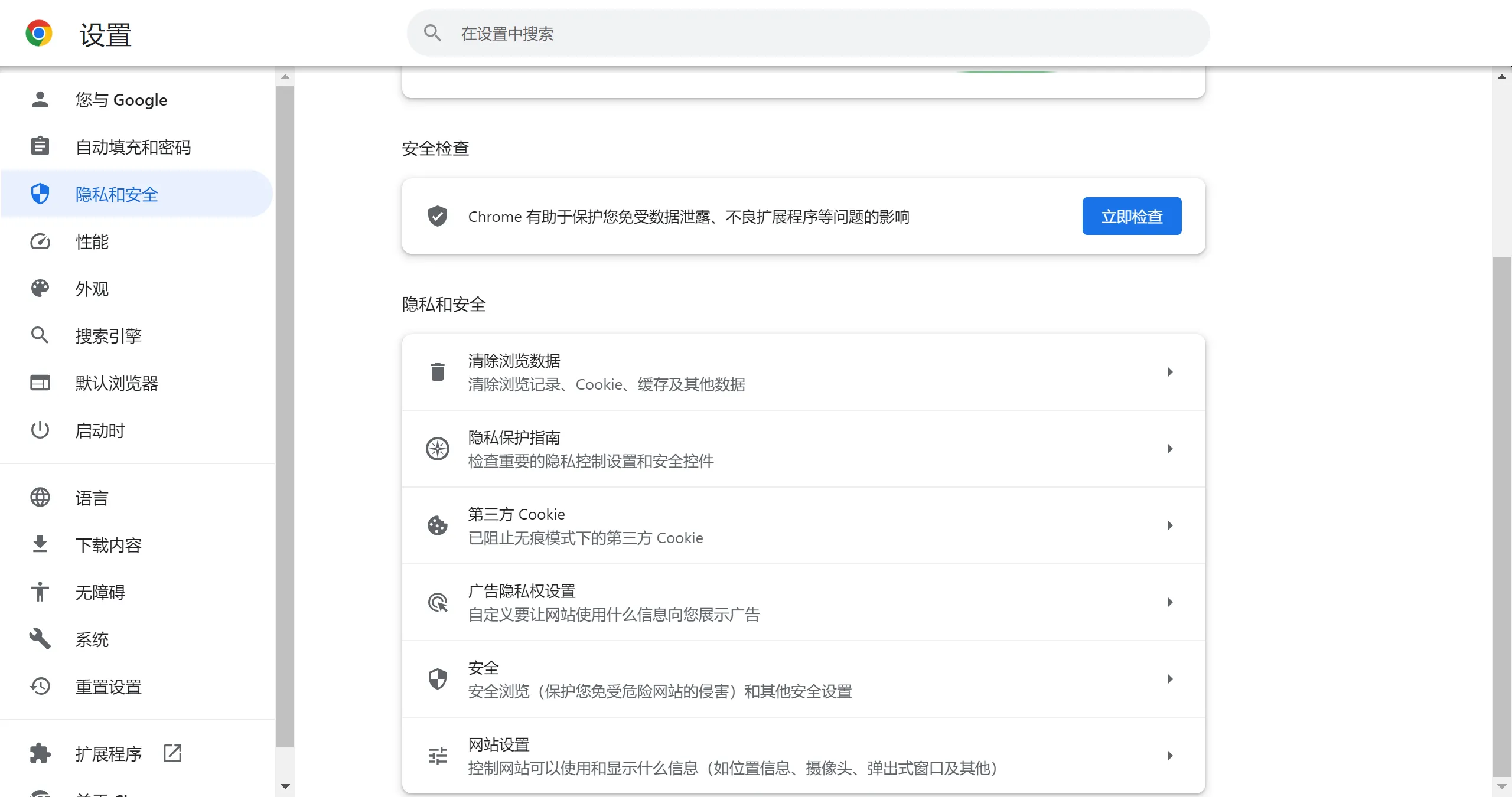
- Open Chrome 1. In your browser settings, click “Privacy and Security” → “Security” in sequence.
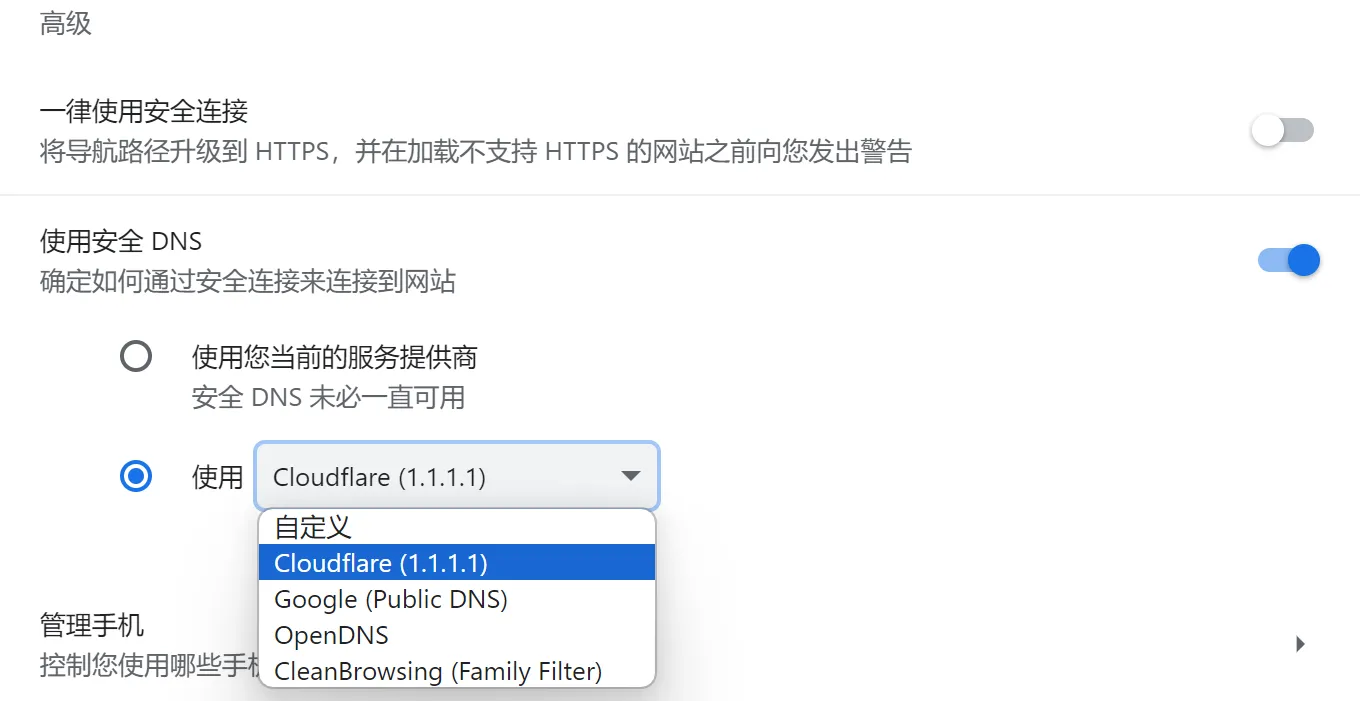
- Go to “Advanced” and enable “Use secure DNS”. Then select a DNS provider (if you don’t know, just choose Cloudflare).
Enable ECH
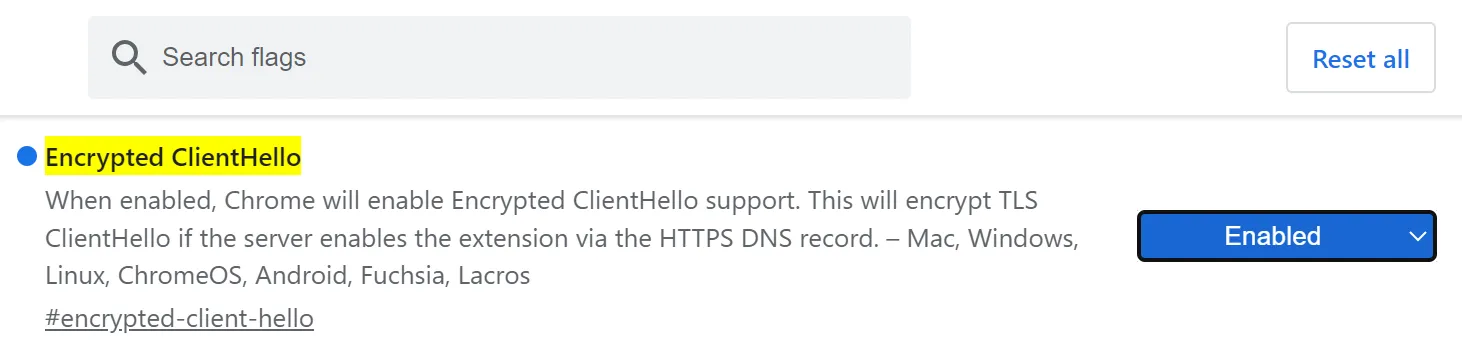
Open this address in your Chrome browser: chrome://flags/#encrypted-client-hello, and change the Encrypted ClientHello option to Enabled.
Detection
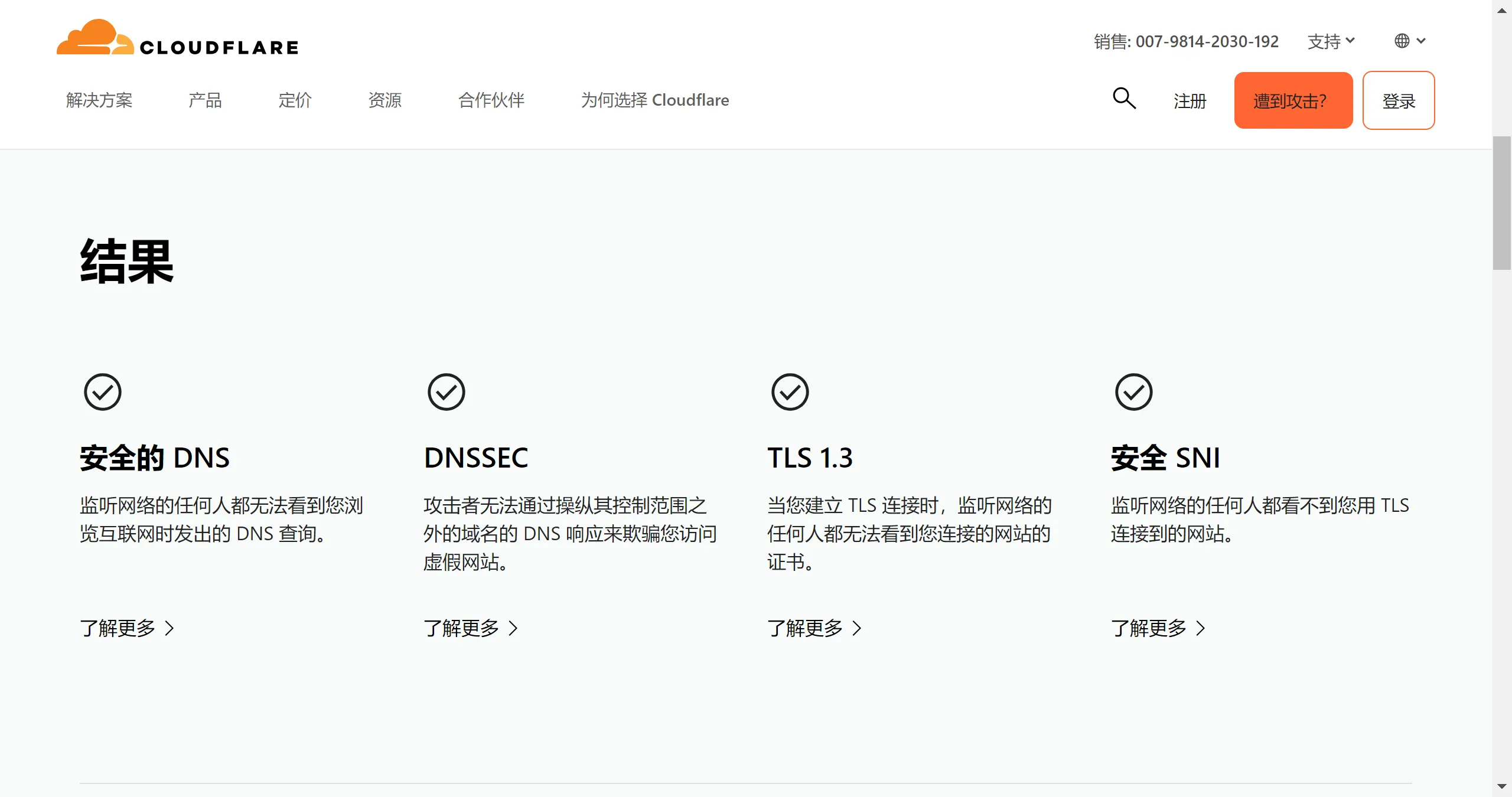
- Open this CF website: https://www.cloudflare.com/zh-cn/ssl/encrypted-sni/, and click the “Check my browser” button.

- If you see a checkmark under “Secure DNS”, it means DOH is enabled. If you see a checkmark under “Secure SNI”, it means ECH is enabled.
Notes
If you are using a software router, this doesn’t matter and you don’t need to worry about it. If you are using other clients, you need to enable TUN. The mode allows it to take over all traffic; otherwise, the browser will not use its own DOH service but will instead hand it over to the proxy software for resolution, which in turn will be sent to the node server for DNS resolution, resulting in invalid traffic.